Sunday, November 8, 2020

Spotify

 Spotify is a digital streaming service that includes access to music, podcasts, and videos from artists and networks all over the globe. Spotify is a Swedish-based streaming service and it was launched in October 2008. Basic access to Spotify is free such as playing podcasts and music in shuffle mode. Users are offered the option to upgrade to premium Spotify which is ad-free, offers music, podcasts, and videos to be downloadable offline, and the option to choose songs directly (rather than shuffle mode). While Spotify is free, Premium Spotify only costs $4.99 a month for students and it includes a subscription to Hulu and Showtime as well (for non-students it is $9.99 per month).
                            Spotify highlights Latinx mental health with some relatable pods and a  playlist | AL DÍA News

Spotify's software includes a ton of custom and personalized features for user to enjoy. For example, Spotify includes daily motivational podcasts, wakeup playlists with a mix of morning songs and words of wisdom, daily mixes of music they listen to organized by genre, new music playlists that they think you would enjoy based on your listening history, and thousands of podcasts. 


As a future teacher, I would say Spotify is a great tool to use in the classroom. A teacher could use this app to assign podcasts for students to listen to and analyze/write about. Podcasts could also be used to fill out worksheets or as study tools. Not to mention, as a teacher, I would personally use Spotify to play music during class or wellness/meditation tracks. Spotify is available as an iOS or Android app as well as downloadable on Macs or PC's. 


Tinkercad


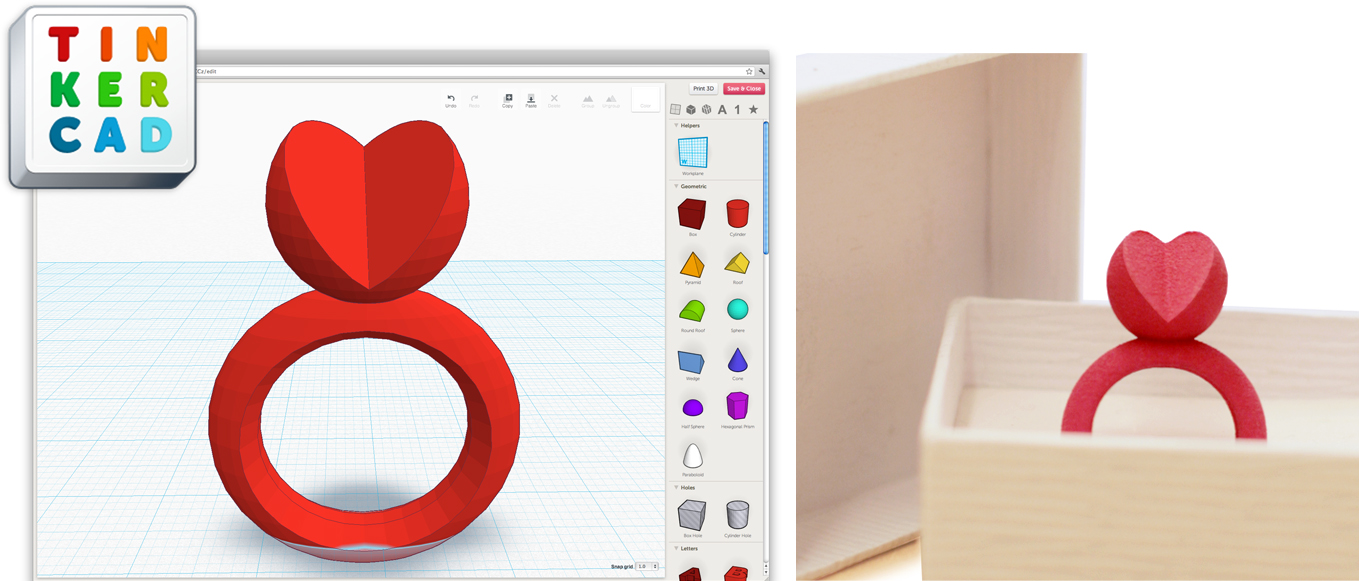
Tinkercad is a software program that allows users to create unique 3D objects and export them to be printed using a 3D printer.  To use it, users can start with a singular object such as a cube or pyramid.  Then, you can customize that shape by rotating it, adding other shapes, adding words, and much more.  Then, teachers can select the option to export the design to be 3D printed.  The software can be connected with 3D printers in the classroom, or designs can be printed and then shipped to your school. 

Even if schools don’t have the budget to own a 3D printer or have creations shipped to the school, I think that Tinkercad can still be a great tool for students to use because it allows students to materialize their ideas and create new and inventive objects.  It’s a great way to get students excited about engineering, creating models, and using their artistic abilities.

From the reviews that I’ve read about this program, it seems to be extremely user friendly and great for allowing students' imaginations to run wild.  The only negative aspects that I’ve heard about Tinkercad is that the 3D printed products only come in solid colors, and it is best to be used by beginners.  For students though, I feel like these cons are actually pros.  It’s great that this software is geared towards beginners because that is the level that most students will be starting at when using this program.  I would love to have the opportunity to use this with my students in the future.  I would love to see their creations and I think that this program could have endless uses and possibilities.

For more info, visit: https://www.tinkercad.com/learn/designs


PowerSchool


As future teachers we learn all about the best practices to engage our students and run an effective and efficient classroom. However, one aspect that's not often discussed in education classes is the accounting so to speak, keeping track of attendance and grades. That is where PowerSchool comes in, an easy to use student information software. PowerSchool allows teachers and administrators to quickly take attendance, post grades, and even track things like permission slips and hot lunch orders. Alongside the teachers platform, PowerSchool offers a mobile app as well as a student side platform that allows students and their parents to stay up to date on all changes in grades and attendance. Personally I have used PowerSchool as a substitute teacher in multiple different school districts and every single time its been a breeze to take attendance and report to the school admin, students have also shown me the student side platform that makes the information easy to read even for younger children and allows them to know exactly which grades they got on which assignments without having to keep track of a paper test or quiz.


The uniformity of the platform makes the lives of school administrators much easier, parents always have access to their students grades prompting less confusion, as well as allowing administrators to quickly known if a student has left school for a doctor's appointment or a student who arrived late with an excuse. Platforms and tools like PowerSchool aren't well known but will certainly be used by each of us as we move into our future as teachers, maybe we will all be using PowerSchool in a few years.

Google Arts and Culture

 Hi Guys so I'm going to be sharing Google Arts and Culture. This website is basically just a google image search but it has the benefit of only being curated sources like statues, art pieces, professional photography etc.  There also a lot of cool VR activities linked in the website. I really like websites like these because I think having access to things that are widely available and easy to retrieve is valuable.


The Home page (above) has some featured pieces, and a search feature. When you search any particular topic you get Links to Collections from Museums, a 3-D walk through of  certain Museums, Stories , and then a lot of Miscellaneous Images relating to your topic. There's also an app which uses VR to display some artifacts like Neil Armstrong Space Suit (Link 3). 


These Stories above also are made with Soundbites and mimic the experience of going to a Museum and although not a complete substitute for an in person experience in regards to distance learning it can still be valuable in its own right, like making students fund a story/exhibit they like and share it with the class through some sort of class blog, or showing students how to find good primary sources as the sources in stories are already curated. For example Link 2 "Iconic Moments From Black History With Misan Harriman" features a variety of images as well as a narration from Misan Harriman explaining the pictures and giving them context, this also features images from protest and strong artistic photos relating to Civil Rights and would be a great activity for Social Studies as I imagine going to art exhibits in person is a hassle, and many popular Museums like the DIA have a plethora of stories and their collection online.
There is also light hearted activities like Visual Crossword Experiment where you just sort art based, on color, when it was made, who made it etc. And even though you can brute force the activity its still just a genuinely pleasant experience and a fun way to kill time (link 4). 


https://artsandculture.google.com (Home Page)

https://artsandculture.google.com/story/hQXR0UTlw65vtQ (Civil Rights story)

https://artsandculture.google.com/asset/neil-armstrong%E2%80%99s-a-7l-lunar-spacesuit-ilc-industries-inc/9wH7PDn3sYF3hw (Neil Armstrong Suit)

https://g.co/arts/WSYYu6hu6xyotnkC8  (Visual Crossword)

Kahoot

 Kahoot !!!


     Kahoot is an amazing way to interact with your students using technology. You can create kahoots for all grade levels. Students really enjoy playing kahoot games from my experience. For example, you can create a review for students to play before giving them their assessment. In previous classrooms, we had vocabulary tests every other week. I would create a kahoot using the exact questions and answers from the assessment given. Students really learned their vocabulary and did wonderful on their assessments after using Kahoot. Kahoot is used for introducing new content, review contents, engage students from virtual learning at home, teach interactive lessons, and reinforce knowledge. Kahoot is designed for teachers to create subjects for students to learn. This is a creative use of technology in a classroom. Kahoot allows teachers to create, host and play, and then share with all students. I feel that Kahoot is a great way to gain attention of all students in a classroom. Each student will use his/her chromebook and join the game code under kahoot.com. Once every student is connected you can start the activity. After starting, you can use your smartboard to display all the questions. Kahoots are also very well for using daily 5 in your classroom. You can assign students to take advantage of learning by creating Kahoots that correspond with each lesson being taught. 


Sources:

When to use technology

    Technology has allowed us to do things that were previously impossible. It is no surprise then that people are interested in using it in the classroom. Khan Academy has helped millions of students learn difficult concepts and apps like Anki make memorizing large amounts of information easy. However, it is important to consider that integrating technology into a classroom can cost money, and not all products are useful.

    The Ed-Tech field is growing faster than ever, and many company's are getting rich of it. There is nothing wrong with this, but everyone in charge of procurement needs to be cognizant of the fact that the companies exist to sell you products, not to decide what your classroom needs. When I was in sixth grade, my district started to purchase smartboards. These are interesting but expensive pieces of technology that allow teachers to combine aspects of a whiteboard and a computer. The problem was, nobody knew what to do with them. At best, teachers used them like a normal whiteboard that they could sometimes project videos on to, at worst, technical issues brought lessons to a halt.

    Many classrooms have used smartboards to great effect, so why did my teachers seem to struggle with them so much? Computer literacy was certainly a factor, but I believe them main reason is that the district bought the boards because they thought it could enhance the learning environment in cool ways without considering what problems it would actually solve. The question should not be "what cool technologies can use in the classroom", but "What am I trying to accomplish, and what tools will help me do that".

    Don't get me wrong, looking at new and exciting technologies and seeing how teachers are using it in the classroom are great ideas. However, before making the plunge on a massive purchase, consider how that technology will allow you to accomplish your specific goals, and if the same thing can be achieved in a cheaper manner. Ultimately, educational technology is a means to an end, educating your students.

Saturday, November 7, 2020

Pear Deck

 Pear Deck for Google Slides — Pear DeckPear Deck is an add-on for Google Slides that keeps students involved as a teacher teaches a lesson through Google Slides. Many of its features are free, but additional ones come at a cost. To get started, the presentation code will be displayed on the teacher's screen, and the students will enter that code from their own device. Throughout the presentation, teachers can add questions for students. They can use multiple different question types: free-response, numerical, multiple choice, dragging, etc. Answers are automatically anonymous, so there's no worry about classmates knowing if it was you who got the question wrong. If the teacher does want to know whose response is whose, then students would have to type their name somewhere on their response, if the question type allows that. Pear Deck works with distance learning, too! All teachers have to do is share their screen with a program such as Zoom, and students will be able to see the class code and the teacher's screen as if they were in a classroom. Last, there is a student-paced feature that enables students to work on their own. Teachers can also add audio clips to slides, so this is especially beneficial for student-paced lessons.